Claude Web MCP Server
Connect Mila to Claude.ai using a custom MCP connector. This lets Claude read, create, and manage your documents, sheets, and slides directly from the chat interface.
Setup
1. Get an API Key
Create an API key from /api-keys (individual) or /team-api (teams).
2. Open Claude.ai Settings
Click your profile icon in the bottom-left corner of the sidebar and select Customize.
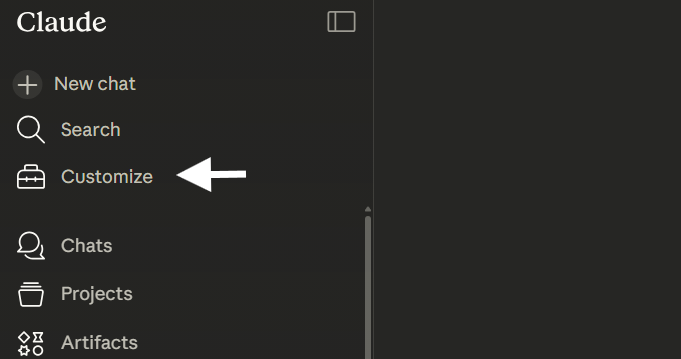
3. Go to Connectors
In the settings panel, click Connectors.
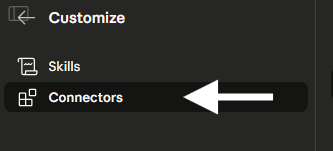
4. Add a Custom Connector
Click the + button to add a new custom connector.
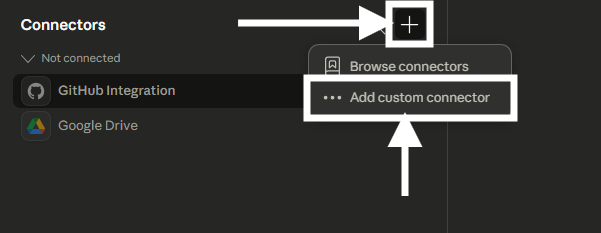
5. Enter the MCP URL
Set the URL to:
https://mcp.mila.gg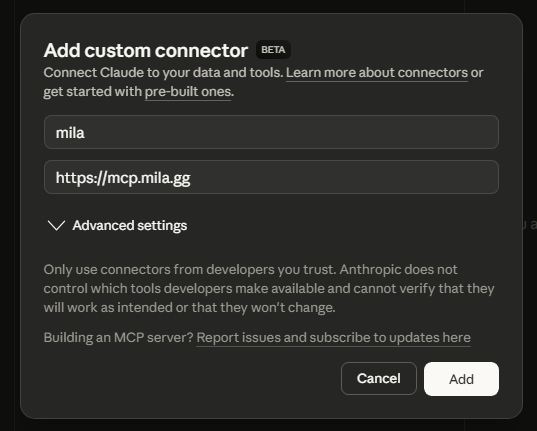
Save the connector. Claude will discover all available Mila tools automatically.
6. Start Using It
Go back to the chat and try asking Claude:
- "List my documents"
- "Create a spreadsheet called Q1 Budget with columns for Category and Amount"
- "Get the content of my meeting notes"
- "Create a 5-slide presentation about our product launch"
Claude will use the Mila tools to interact with your documents, sheets, and slides in real time.